
Overview
In your crawl's Hosts report, you can change a collection's scope rules on any host listed. You can also run patch crawls on any hosts that have blocked documents, which may improve Wayback replay. This article shows you how to change the scope or run patch crawls from inside your Hosts report.
Prerequisites
A crawl report from a Saved Test, One-Time, or Scheduled crawl. Unsaved test crawls won't allow these actions.
On this page:
Change the scope of a specific host
Go to your crawl's Hosts report.
- Select the specific host(s) you want by clicking the checkbox.
- Select Edit Rules.
- For existing rules on the host, you can toggle the control off or delete the rule.
-
To add a new rule, select the rule you want from the drop down menu:
-
- Exclude Host
- Limit Data
- Limit Documents
- Ignore Robots.txt
- Exclude documents if
-
- Click Add Rule.
Outcome
Rules changed or added will be displayed and applied to your collection's scope rules. Rules will be applied to your next crawl.
Run patch crawls on blocked documents
When blocked documents appear in your hosts report, you can run patch crawls on them. This may help improve Wayback replay.
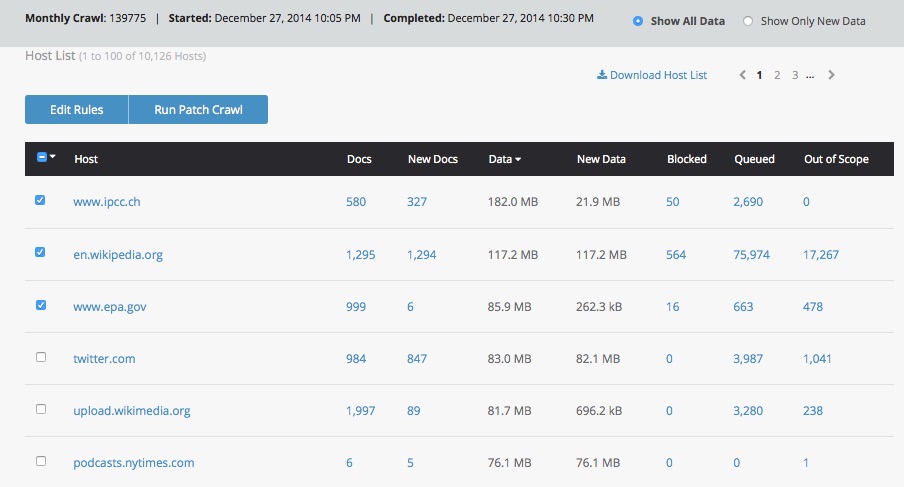
- Go to your crawl's Hosts Report.
- Look in the Blocked column for any numbers.
- Click directly on the number to see if you need those documents. If unsure, you can copy the URLs from the list and paste in a browser's address bar.
- Click the checkbox next to the host with the blocked documents.
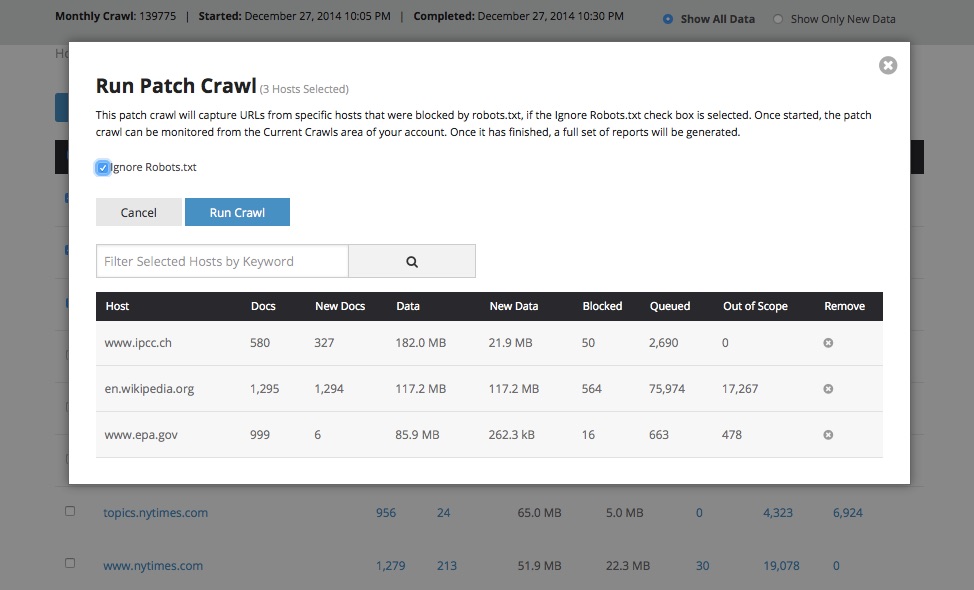
- Click Run Patch Crawl.
- Click the Ignore Robots.txt check box.
- Click Run Crawl.
Outcome
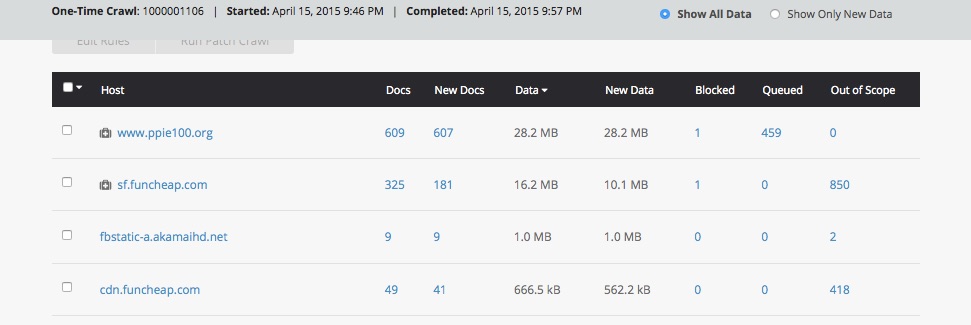
Patch crawls send the Standard crawler back to the live website to collect the blocked documents. After your patch crawl has run, you will see a medical tool box icon display for any hosts that have been patched.
These patched documents will take 24 hours to index. After 24 hours, check your Wayback page to see if the patch crawl helped improve replay.
Related content
Reading your crawl's hosts report
Comments
0 comments
Please sign in to leave a comment.