
On this page:
- Why limit a crawl?
- How to limit an entire crawl by time and/or data
- How to limit the data for specific hosts at the collection level
- How to limit the crawler from archiving specific hosts
- How to limit the amount archived from specific hosts
- How to limit specific URLs from archiving
- How to limit at the seed level
- Further information
Why limit a crawl?
Whether due to crawler traps or unexpected hosts, crawling too much data can negatively impact your annual subscription's data budget. Limiting the scope of your crawl can help ensure that you do not archive too much material.
These limits can apply to entire crawls in the form of time and/or data limits. They can also be applied at the seed level, or the collection, to specific hosts that a crawler encounters during the course of its crawl. For example, you can specify the amount of data that you wish to crawl from facebook.com or en.wikipedia.org. This article provides directions for adding and editing both kinds of limits. For related information, see Modify your collection or seed scope.
How to limit an entire crawl by time and/or data
Time limits for one-time crawls - Test or Production
1 or 3 day time limits are recommended for all crawls on new seeds
There are no hard and fast rules for determining how much time a crawler will need to capture a seed or group of seeds. You have the option to select time limits that range between 10 minutes to 30 days, but we recommend a 1 or 3 day test crawl to start. Based on the results of your 1 or 3 day test crawl, you can then increase or decrease the time limit as necessary for subsequent crawls.
Time limits determine the maximum time a crawl will run. It is possible for a crawl to finish before it reaches the time limit.
Time limits for recurring crawls
By default, every seed in your collection is assigned a crawl frequency when you add it, and this frequency in turn determines the default time limit.
|
Frequency |
Default Time Limit |
Description |
|---|---|---|
|
Twice daily (every 12 hours) |
12 hours |
Twice-daily crawls repeat every 12 hours. We strongly recommend running a test crawl before scheduling your seeds to this frequency, as these crawls can quickly use up large amounts of your data budget. |
|
Daily |
24 hours |
Daily crawls repeat every day and run up to 24 hours. We strongly recommend running a test crawl before scheduling your seeds to this frequency, as these crawls can quickly use up large amounts of your data budget. |
|
Weekly |
3 Days |
Weekly crawls repeat every week and have a time limit of 3 days by default, which can be edited. |
|
Monthly |
3 Days |
Monthly Crawls repeat every month and have a time limit of 3 days by default, which can be edited. |
|
Bimonthly |
3 Days |
Bi-Monthly Crawls repeat every two months and have a time limit of 3 days by default, which can be edited. |
|
Quarterly |
3 Days |
Quarterly crawls repeat every three months and have a time limit of 3 days by default, which can be edited. |
|
Semiannual |
5 Days |
Semiannual crawls repeat every 6 months and have a time limit of 5 days by default, which can be edited. |
|
Annual |
5 Days |
Annual crawls repeat every 12 months and have a time limit of 5 days by default, which can be edited. |
|
One-Time |
3 Days |
A One-Time crawl runs exactly once and is not scheduled to repeat. These crawls have a time limit of 3 days by default, which can be edited. |
To change the default time limit or add data or document limits for a scheduled crawl, from your collection's Crawls tab, select Scheduled Crawls.
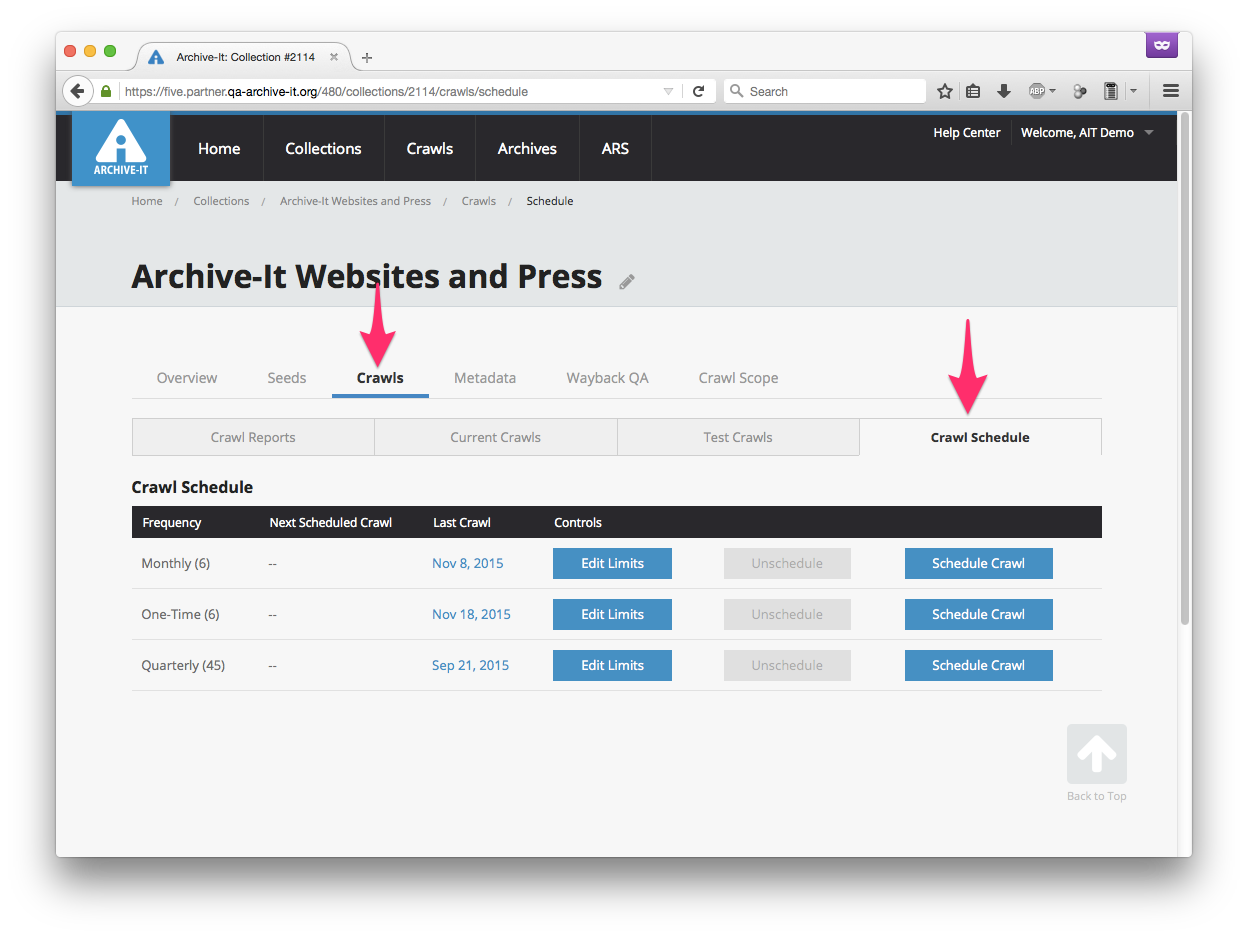
For the frequency you want, select Edit Limits button.
In the dialog box, edit any limits and then select Modify Limits.
How to limit the data for specific hosts at the collection level
You can impose data limits to specific hosts, which limits how much material is archived from each host. Host limits are often recommended when crawling very large sites, like Facebook and Twitter; specific guidelines are available for those sites and other common sites.
In your collection, select the Collection Scope tab. You can limit the number of documents that you archive from a host(s), the amount of data from a host(s), and/or exclude or limit URLs that match specific strings or patterns of text.
Your added rule(s) will appear in the collection's Scope Rule List.
Under Controls, you can toggle the rule off or delete a rule.
How to limit the crawler from archiving specific hosts
To limit our crawler from archiving any URL it encounters from a specific host:
- In your collection select the Collection Scope tab.
- From the drop-down menu, select Exclude Host.
- In Enter Hosts, add the names of the hosts exactly as they appear in your crawl's Hosts report -- one host per line.
- To save, select Add Rule.
How to limit the amount archived from specific hosts
A data limit placed upon a crawl will apply to New Data rather than Total Data. This is because only New Data counts against your data budget due to data de-duplication.
To limit the number of documents, or the amount of total data it encounters from a specific host:
- In your collection select the Collection Scope tab.
- From the drop-down menu, select Limit Data or Limit Documents.
- In Enter Hosts, add the names of the hosts exactly as they appear in your crawl's Hosts report -- one host per line.
- Enter the data or document limit.
- To save, select Add Rule.
How to limit specific URLs from archiving
To limit our crawler from archiving precise URLs, or URLs that contain specific text or patterns:
- In your collection select the Collection Scope tab.
- From the drop-down menu, select Exclude Document if
- In Enter Hosts, add the names of the hosts exactly as they appear in your crawl's Hosts report -- one host per line.
- Enter a specific string of text or URLs that match a specific regular expression.
Limit URLs containing specific text
We recommend excluding URLs that contain specific text whenever there are known areas of a site that you don't want to archive, and when those areas can by identified by a string of text in all of their respective URLs.
To exclude URLs containing specific text, select Exclude Document if > it Contains the text: and then enter the text as it appears in the undesired URLs.
To save, select Add Rule.
Exclude URLs that match a regular expression
Regular expressions are rules that our crawler can follow in order to identify URLs that might not always have the same string of text in them, but which nonetheless conform to a regular pattern. Often, these manifest in the form of crawler traps like online calendars, which can dynamically generate endless possible URLs with combinations of dates and times. Before attempting to use regular expression to control our crawler, we highly recommend reviewing our general guidance on regular expressions.
To limit our crawler from archiving any URL that matches a given regular expression, select Exclude Document if > it Matches the Regular Expression: and then enter the regular expression to match the pattern of the URLs you do not want to archive.
To save, select Add Rule.
How to limit at the seed level
To modify scope at the level of a particular seed:
- In your collection's Seeds tab, click the hyperlinked URL of the seed you want.
- In the Seed Scope tab, add a data limit or a rule to exclude specific documents or audio/video.
- To save, select Add Rule.
Further information
In addition to limiting the amount of material that your crawl archives, you can also limit a crawl by the type of material archives by limiting it to only archive PDFs.
Comments
0 comments
Please sign in to leave a comment.